Encrypted Spreadsheet for Passwords
Stop storing passwords in a spreadsheet.
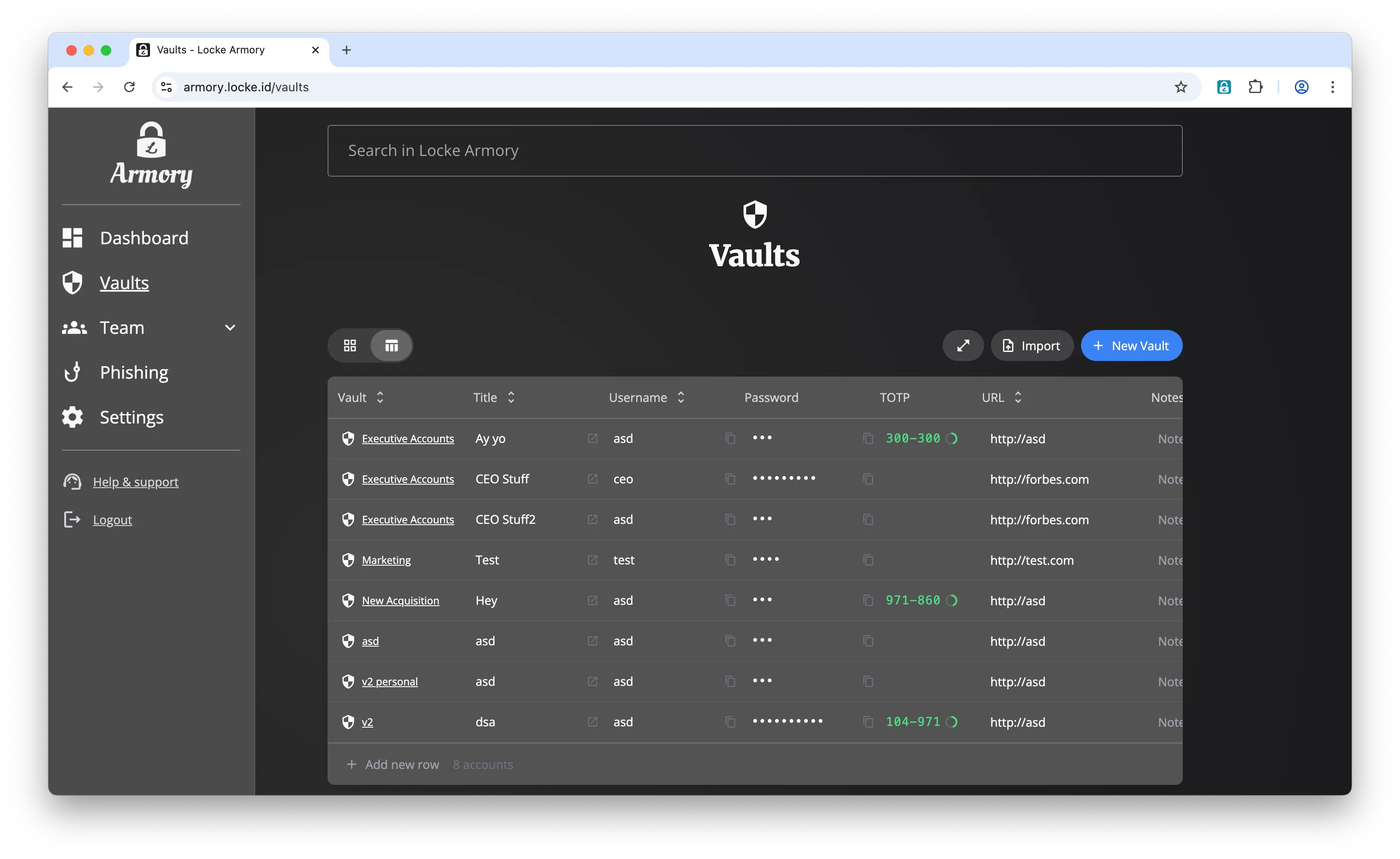
You love spreadsheets, and we get that. They're familiar, fast, and information dense. Locke Armory gives you the same interface but with row-level encryption for passwords.
The Problem
Why you shouldn't store passwords in Excel
No Encryption
Excel files store data in plaintext. Anyone with the file can read every password.
No Access Control
Everyone with the file sees everything. No way to limit who sees which passwords.
Easy to Leak
One wrong email attachment or cloud sync and your passwords are exposed forever.
The Solution
Row-level security for your passwords
Each password is encrypted with a key specific to its vault. Team members only see the rows they're authorized to access. This is row-level security (RLS); the same approach used by enterprise databases.
Vault-based access controls
Organize passwords into vaults. Team members only see vaults they belong to.
Per-vault encryption keys
Each vault uses its own encryption key. Impossible to decrypt vaults you don't have access to.
Multi-vault spreadsheet view
See all your authorized passwords in one table, sorted and filtered however you like.
Row-Level Security
Marketing Vault
5 passwords
Engineering Vault
12 passwords
Executive Vault
Hidden
Easy Migration
Import your passwords in seconds
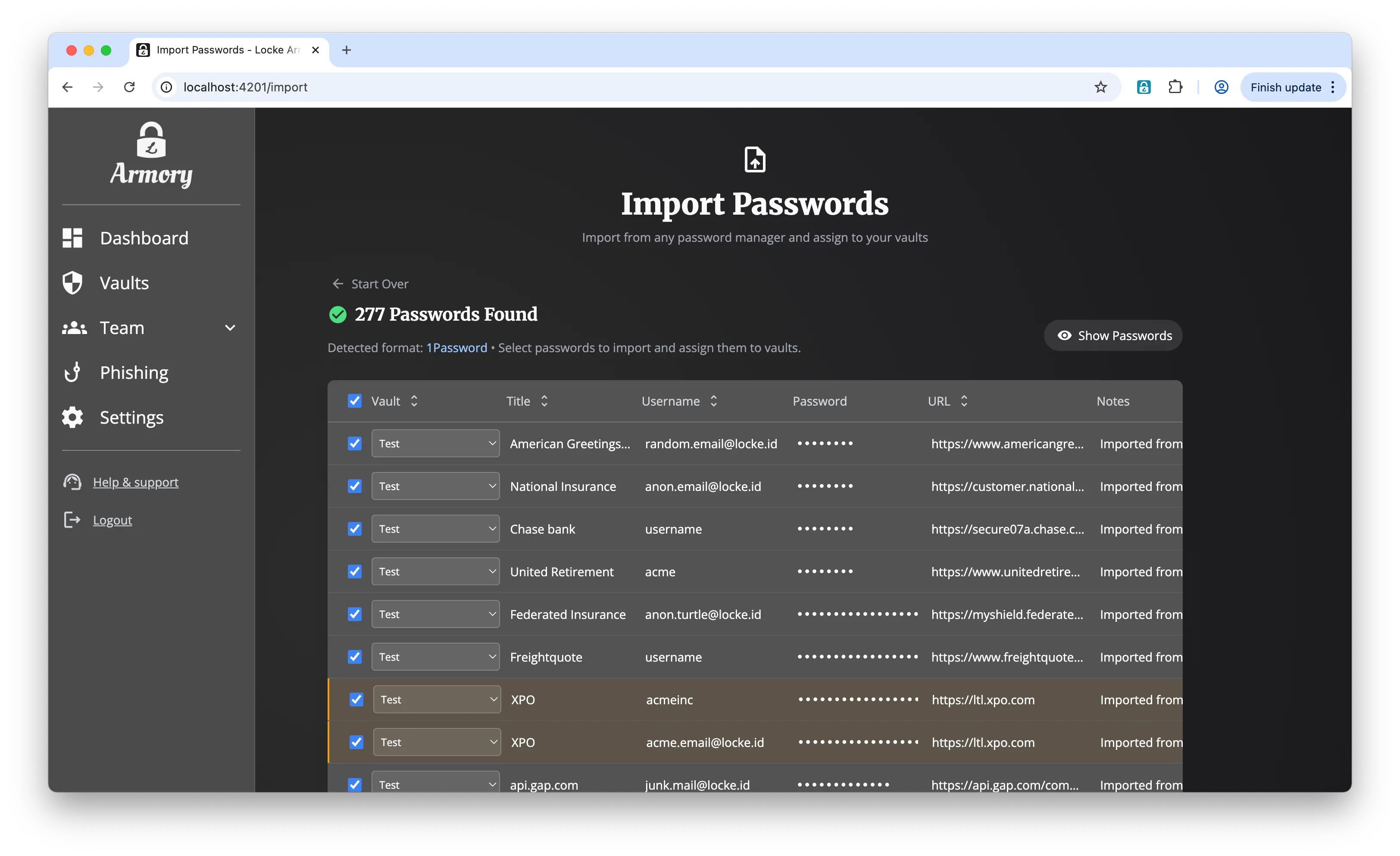
Drag and drop a CSV export from Excel, Google Sheets, or any password manager. Locke auto-detects the format, shows you a preview, and lets you assign passwords to the correct vaults before finally importing.
FAQ
Common questions
Is it OK to store passwords in Excel?
No. Excel files have no encryption, no access controls, and are easily shared or stolen. If you're currently using Excel or Google Sheets for passwords, you should migrate to an encrypted password manager immediately. Locke Armory gives you the same spreadsheet interface with proper security.
What is row-level security?
Row-level security (RLS) restricts access to specific rows based on user permissions. In Locke Armory, each password is encrypted with a vault-specific key. Team members only see passwords in vaults they have access to—everyone else sees nothing.
Can I import my existing password spreadsheet?
Yes. Export your Excel or Google Sheets file as CSV, then drag and drop it into Locke Armory. We also support direct imports from 1Password, Bitwarden, LastPass, Dashlane, Chrome, Firefox, KeePass, and Keeper. The format is auto-detected.
How is this different from a shared Google Sheet?
Google Sheets stores data in plaintext on Google's servers—anyone with access sees everything. Locke Armory encrypts each password client-side before it leaves your device, organizes passwords into access-controlled vaults, and provides audit logs of who accessed what.
Ready to upgrade from Excel?
Import your existing passwords in under a minute. The Encrypted Spreadsheet is included with every Locke Armory account.
No credit card required to start. Contact sales for team pricing.